Stay calm, we’re here. We’re just always updating. We currently have a pastebin about to go up until we get our domain set up to Sell used laptops, routers, firewalls, and networking features. We also have a pastebin going up very soon to sell car parts. Be patient, I will add the links below as they become available. We also have a very dependable (as were told rcs2 source, as this is a legal service) you can inquire about by clicking get sourcing. We will be hosting tutorials on networking issues such as VPNs, firewalls, encrypting your disks and becoming secure and potentially anonymous on the internet. We will cover several different operating systems, attempt to make a online store containing chromebooks, some laptops already set up for privacy, firewalls, routers and yubikeys. So if you’re online gaming, working from home of rc sourcing, this is the place for you.
Let’s grow together.
Securing your network
First and foremost, this isn’t really a step, but for those of you who download apps and just click “allow” on everything so that you can get to your app.. Well think about it, why does everything need access to your files, microphone or camera. Watch what you do allow on your phone and be sure to turn your location off!
Step 1:Change your router’s SSID and password. you can do this by accessing your gateway ip address in your default browser and editing your router’s settings. You can access your gateway IP address through your computer’s terminal.
Step 2: If you’re in need of a new router, consider purchasing one that accepts VPN firmware. ExpressVPN has a spectacular team of troubleshooters and customer service rating. When running a VPN from your router, you can have all your devices connected to whatever country’s available server that you choose.
Step 3: This one is simple. Make sure your passwords are strong. When I say strong, I don’t mean the website tells you the password is strong, I mean use a password manager with a built in password generator. Then you only have to write down or remember one master password for you to have access to all the passwords you generated and save. You should also change your passwords every 30-90 days.
Step 4: This one is free, basically advice. move as far away from google as possible. Google search is not a good thing at all. it records everything you type into it and everything google is tracked. Google is ok if you’re just a web surfer and student. it is actually very convenient. It is basically only safe with the use of MFA or multi factor authentication.
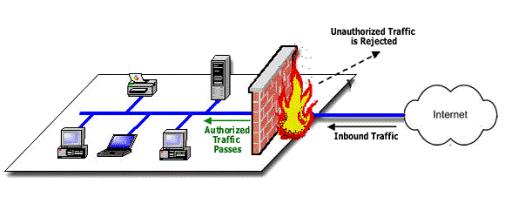
Step 5: If that new router doesn’t have a built in firewall, add one. There are many options cisco, netgate, firewalla etc. They are all pretty good choices at closing ports that your System firewall misses.
Step 6: Apple users: Turn your firewall on. I will devote an entire page to securing an apple computer later on. You do this by going into your system settings and clicking firewall and simply clicking “Turn Firewall On” Windows users: Keep your system up to date as the firewall will be on unless you add an anti-virus like Kaspersky for one that takes over your firewall. For this reason I don’t recommend Kaspersky, personal preference.
Step 7: Speaking on anti viruses. Install an anti virus if you are running windows. Use your preference, although I am not currently running either I recommend Mcafee or Norton. Norton at the top of the list, because it also come with the real deal identity theft protection “LifeLock.” Amultitude of identities are stolen and sold to the highest bidder (even when your credit is bad.) Never! I mean never! forget to add Malwarebytes (12 USD) for a years subscription and it practically replaces an anti-virus. If not Malwarebytes, Bitdefender has free options and paid options and are quickly becoming the new Malwarebytes.
Step 8: Use a security key that works with your password manager. There is a google key for those who don’t despise googleand for the elite there is Yubikey. A yubikey can be used as a hardware key to log into Operating Systems like Mac OS and Windows. If you’re having security issues, this could be your answer. It will double as a OTP or one time password key for two factor authentication also.
Step 9: If you are running Windows 10 pro, as you should if you’re going to run windows.. the most targeted OS on the market. Go to your settings and turn on bitlocker, to encrypt your hard drive so if anyone gets your information from there, it’s encrypted. There is also a way for Mac OS users to do this just as simple from their settings menu, but the name eludes me.
Step 10: You want a faster browser, I get it. and Google Chrome is a light and fast browser. that tracks everything. Word is and we haven’t seen otherwise that DuckDuckGo Browser is a more secure for of Chrome, their are other options like Opera that I have no experience with, Brave that we have someone doing some testing on as it seems promising saying that it can connect through TOR. Firefox is said to be privacy directed, but it’s default search engine is Goolge, doubt that. Then we have TOR everyone thinks it is only for the dark web. Nope! there are over 10 billion users of TOR according to Google Play Store. it uses 3 ip addresses or nodes to connect to a website and the complexity of it you can also see on youtube. Search something like “TOR onion.” It can access those dark web sites of course those ?.onion sites for you rc sourcers out there.
Step 11: Set your default search engine to something other than google, like startpage. It is basically google without all the trackers.
Step 12: in your browser’s settings, find the option to select sending a do not track message with your website requests.
Step 13: get a private email, encrypted also. Top options include criptext, protonmail, tutanota, mailbox.org and mailfence. Some of these email clients will even let you make a custom domain name in place of theirs. But of course owning your own domain example: youremail@yourdomain.com. We do plan to eventually add a domain and encrypted email service of our own in the future, if you wish to make a donation click the email link above.
These are your basics of networking from home pretty securly. Wewill have more pages soon explaining some of the things you can do and how simple they can be along with how simple and user friendly these options are.
 Welcome to 404 ERROR Networking